Opera Browser Connector
Connect with the Opera browser
- Category
- Productivity
- Developer
- Opera Norway AS
- Website
- (opens in a new window)
How it works
Connect Opera Browser to ChatGPT. When enabled, it can see open tabs, read page content, take screenshots of the page, and navigate to the page. And, based on the permissions you allow it, it could also view browsing history and close tabs First ensure that Opera Browser Connector is enabled in Opera; Opera browser settings > search for "AI Services" > On Browser Connector click install Once installed, the connector appears in Opera's toolbar, where you can manage connections to ChatGPT
What else can you do?
Summarize research tabs
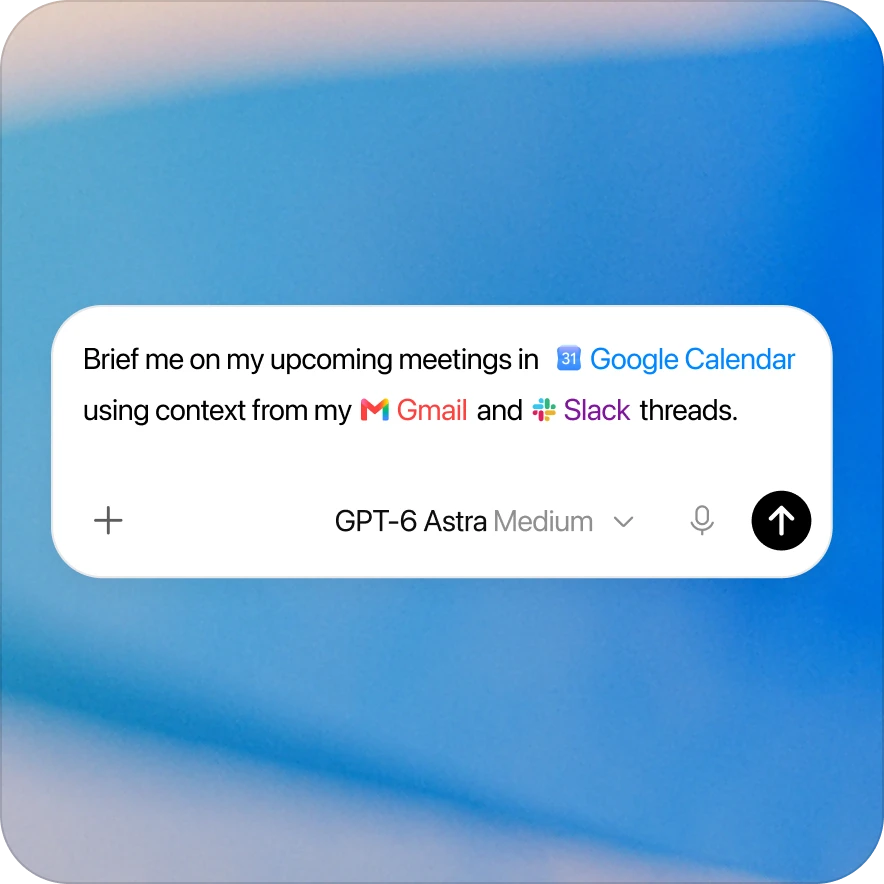
Opera Browser Connector Read my open Opera tabs about this topic. Summarize the key findings and disagreements, and include the relevant page URLs.
Compare open vendor pages
Opera Browser Connector Compare the vendor pages open in Opera against this requirements list. Cite the pages and mark requirements that the available content does not establish.
Recover a browsing trail
Opera Browser Connector Using the browsing history I allow, find the research pages I visited today about this project. Group them by topic and suggest which to revisit first.
What’s included
App
Opera Browser Connector
Resources
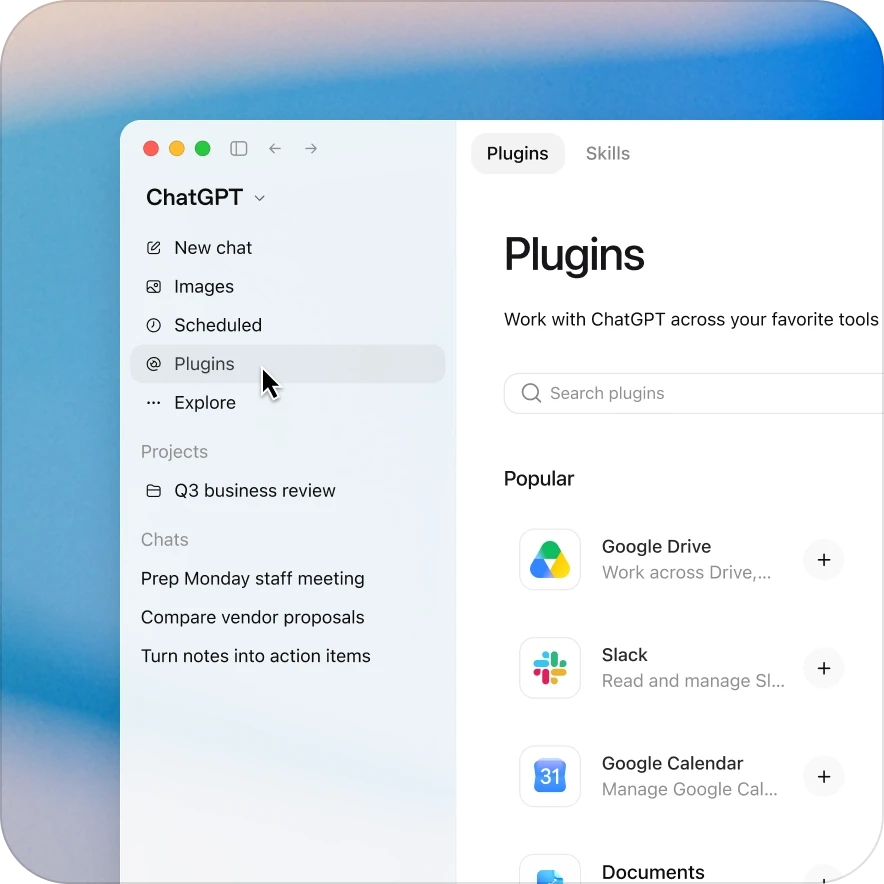
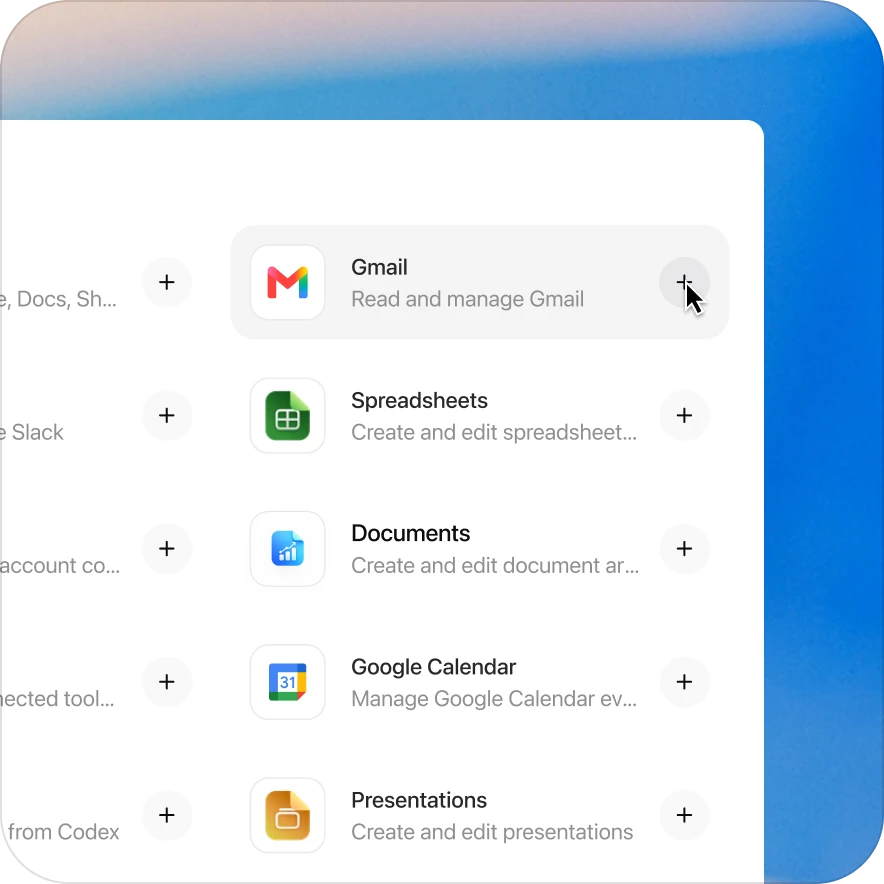
Add the Opera Browser Connector plugin in a few clicks
Availability depends on the plugin, your plan, and workspace settings. Some connections require admin setup or approval. Contact your workspace admin if access is blocked.